Sales Return For Gifts & Books
Company
TOUCHSTONE FOUNDATION VRINDAVAN – NCR
1. Sales Return Process
1.1 Open Sales Invoice
- Go to Selling → Sales Invoice
- Click create a New Sales Invoice
- Tick the checkbox Is Return
1.2 Customer Selection / Creation
- Search customer in Customer field
- If customer is not available:
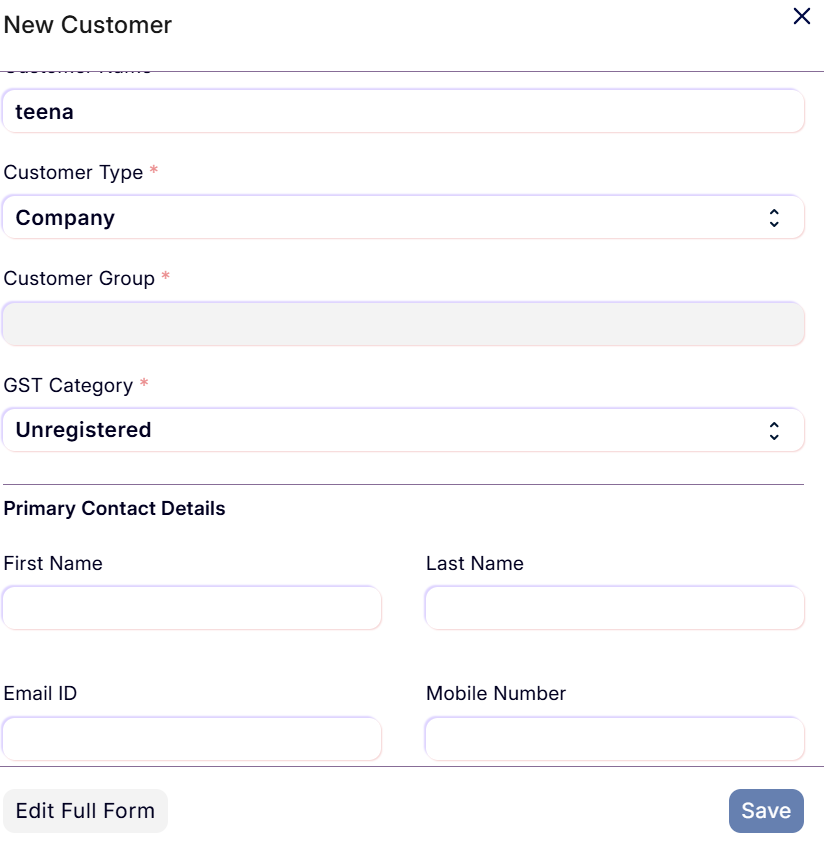
- Create a new customer (Click on Create a new Customer then Box will open)
- Customer Group: Gifts and Books
- Mobile No. is mandatory
- Other info also (like address, email etc.) can be taken
- Select the customer present in this group
1.3 Basic Details
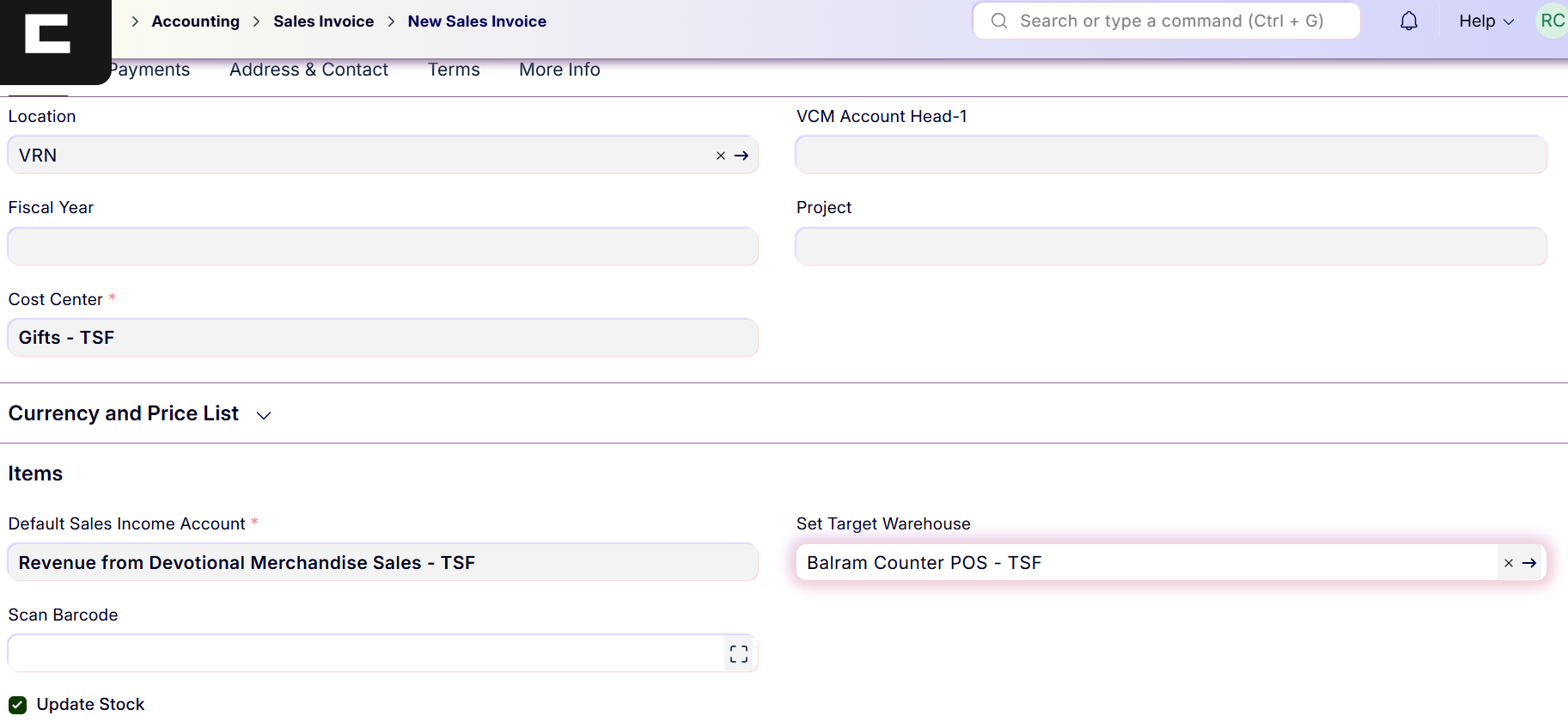
- Company: TOUCHSTONE FOUNDATION VRINDAVAN – NCR
- Cost Center: Gifts or Books
- Location: VRN
1.4 Stock and Accounting Details
- Select the warehouse where the return item will come
- Tick the checkbox Update Stock
- Default Sales Income Account:
Revenue from Devotional Merchandise Sales - TSF
1.5 Item Details
- Select the item
- If multiple items, add a new row
- Quantity must be negative (e.g. -1)
1.6 Additional Information
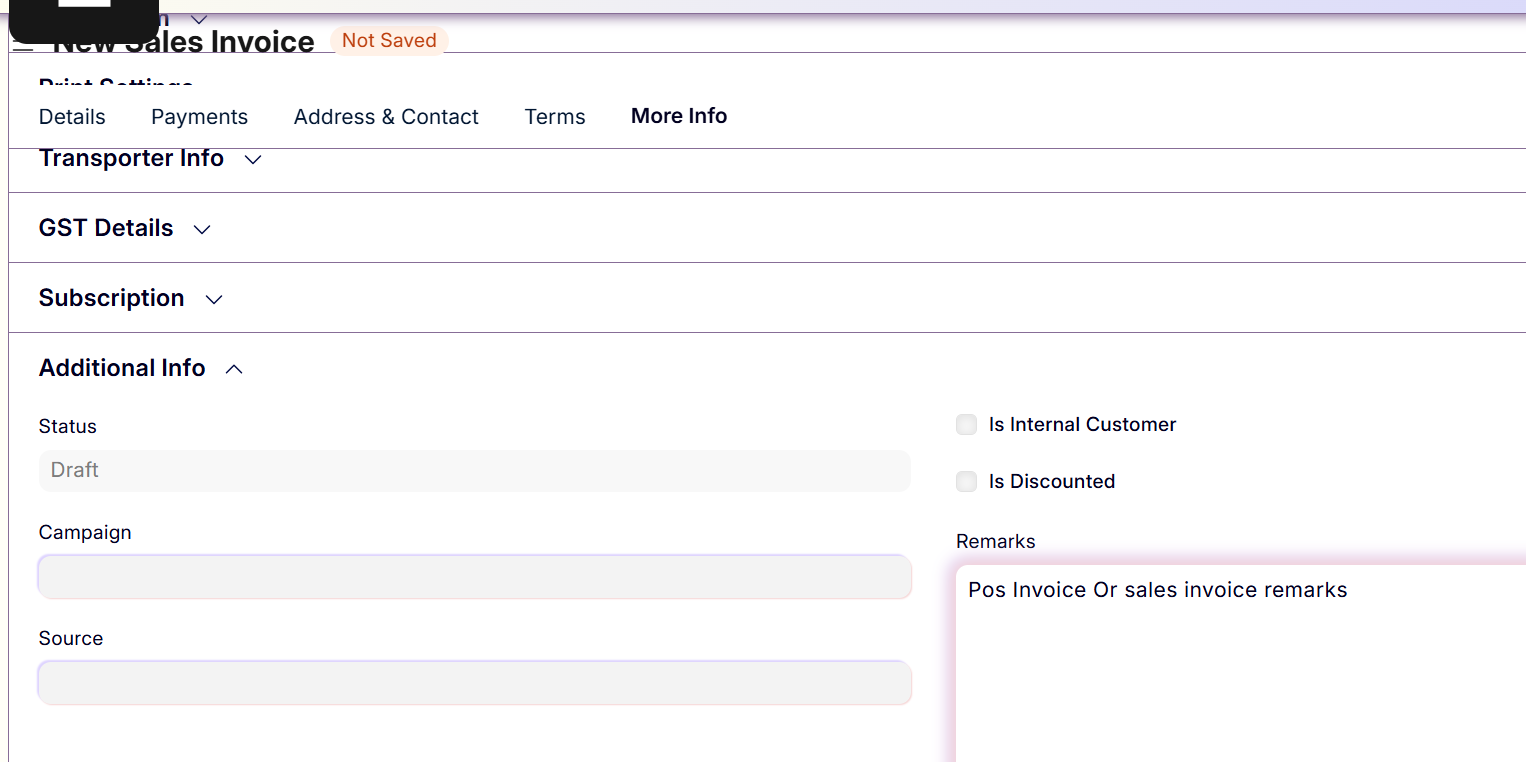
- Go to More Info tab
- In Additional Info / Remarks, mention the POS Invoice number
1.7 Save and Submit
- Save the Sales Return
- Check all details
- Submit the Sales Return
2. Sales Invoice for Bill Exchanged Items
2.1 Create Sales Invoice
- Go to Selling → Sales Invoice
- Click New
2.2 Customer and Company Details
- Select the same customer as in the Sales Return invoice
- Company: TOUCHSTONE FOUNDATION VRINDAVAN – NCR
- Cost Center: Gifts or Books
- Location: VRN
2.3 Stock and Accounting Details
- Select the warehouse from where item is going
- Tick the checkbox Update Stock
- Default Sales Income Account:
Revenue from Devotional Merchandise Sales - TSF
2.4 Item Details
- Select the item
- If multiple items, add a new row
- Quantity will be positive
2.5 Additional Information
- Go to More Info tab
- In Additional Info / Remarks, mention the return Sales Invoice number
2.6 Save and Submit Bill
- Ensure the bill amount is greater than the return amount or same
- Save the Sales Invoice
- Check all details
- Submit the bill
3. Payment Entry
3.1 Create Payment Entry
- Open the billed Sales Invoice
- Click Create → Payment Entry

3.2 Payment Details
- Select the Mode of Payment
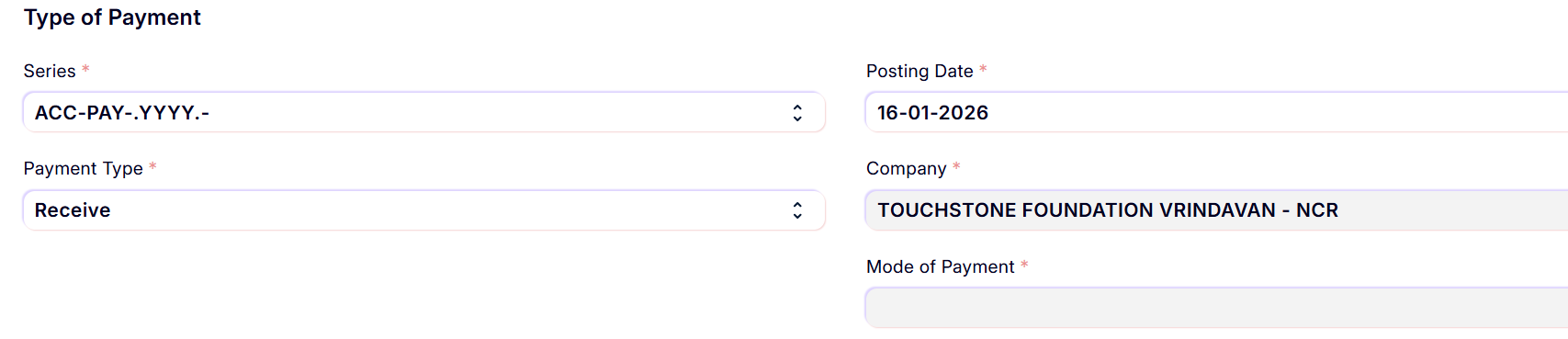 2. Fill the Paid Amount
(Difference of return amount and new bill amount)

- Fill the Reference Number

3.3 Save and Submit Payment
- Save the Payment Entry
- Check all details
- Submit the Payment Entry
4. Payment Reconciliation
4.1 Open Payment Reconciliation
- Search Payment Reconciliation
- Open the Payment Reconciliation tool
4.2 Set Filters
- Company: TOUCHSTONE FOUNDATION VRINDAVAN – NCR
- Party Type: Customer
- Party: Customer for whom Sales Invoice was created
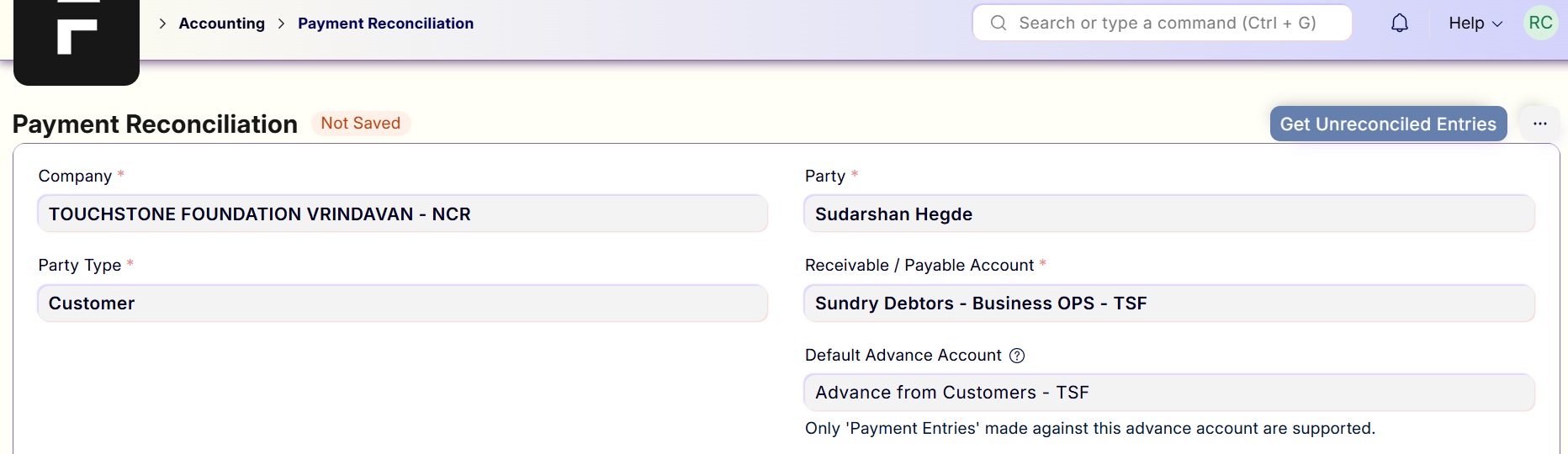
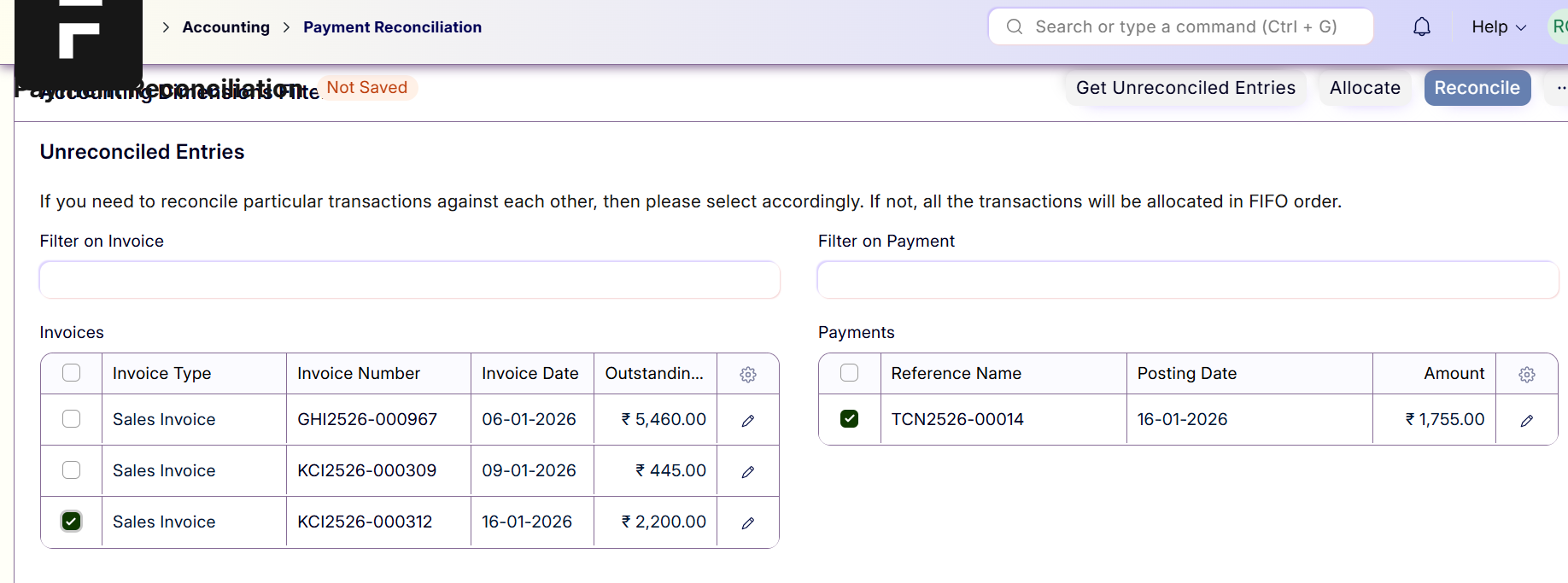
4.3 Reconcile Entries
- Click Get Unreconciled Entries
- Select the Sales Invoice, Sales Return, and Payment Entry
- Click Allocate
- Click Reconcile
4.4 Verification
- Sales Invoice outstanding amount should be zero
- Sales Return outstanding amount should be zero
Additional Info
- Return policy is decided by Finance and concerned department
- For now 7 days Return Policy from date of POS Invoice and Credit Note can be exchanged till 3o days from date of Posting Credit Note


 2. Fill the Paid Amount


